
Add image components to your microsites.
- Go to your **Microsite **click Edit.

- Click Add New Component, and then click the Image.

- Choose an Image from your computer.

- Enter your **link **(social media or youtube channel) so that visitors are directly directed to the link.
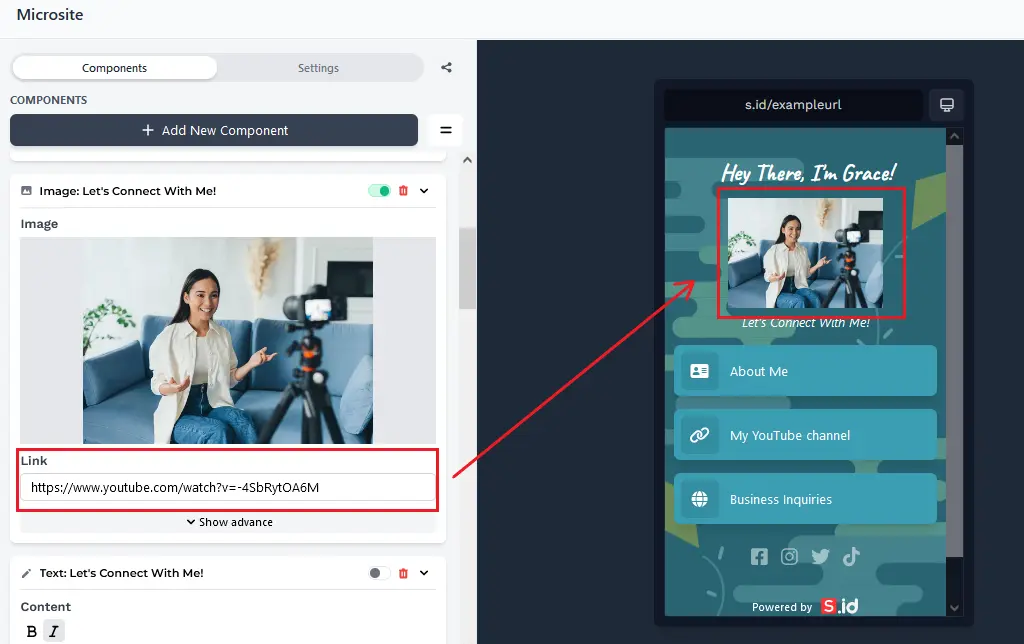
- Click Show Advance to more editing and enter the name of the content you want to write

6.** Image Type**, there are two options:
1. Full column
2. Two columns (you can add two images)
(p.s: to add two images, add a new image component)

- Image Placement, there are four options:
1. Full width
2. Centered
3. Square contains
4. Square cover
5. Rounded Cover
6. Rounded Contain

8.** Image Width**, to set the image size, select **custom **first.

- Add content.
**1. Bold **or **Italic **text.
Select text you want to bold

Then click **Bold **or Italic.
